Assign issues to agents
Put an agent in charge of an issue and decide whether it starts working right away.
When a piece of work needs an agent to own it over time, assign the issue to it. The agent reads the issue's description and discussion, does the work with its own configuration and skills, and writes progress and results back to the same issue.
When you only need the agent to handle one specific request without changing ownership, use an @-mention in a comment instead.
Assign and start a run
- Open an issue and click Assignee.
- Pick an agent or a squad.
- Review the agent about to start in the confirmation dialog.
- Add a handoff note if needed, then choose Start.
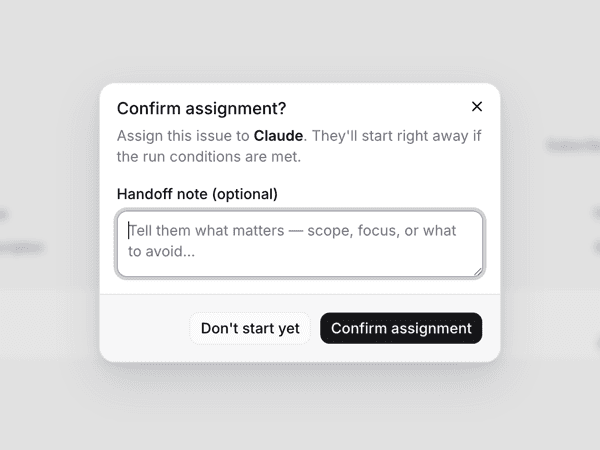
The handoff note applies to this run only — use it for scope, ordering, or what to focus on this time. Requirements that should hold long term belong in the issue, the project description, or the agent instructions.
When you assign to a squad, the squad becomes the issue's assignee and the squad leader starts first. It decides whether to hand work to other members, following how the squad operates.
Execution after assignment
Multica creates a task for the agent. Once an online runtime claims the task, it invokes the AI coding tool on that machine; progress, comments, and results then appear in the issue.
If the runtime is temporarily offline, the task waits in the queue; a task is bound to its runtime and never moves to another machine.
While executing, the agent can:
- read the issue's description, fields, and comments;
- use its bound skills, MCP servers, and project context;
- read files, run commands, and make changes in its local working directory;
- post comments and update the issue status.
What it can actually do is still limited by the agent's configuration, the runtime environment, and your permission to run it.
During the run, the agent is expected to manage the issue's status by convention (typically todo → in_progress, then in_review on delivery) — these actions appear under the agent's identity in the timeline. Task lifecycle and issue status are separate: a task completing does not by itself change the issue status.
When the assignee is a squad, the same expectations apply: Multica enqueues the leader, who moves the parent issue to in_progress on the first turn and keeps it there while members work. The leader only moves it to in_review once the overall goal is met — a successful first dispatch is not completion.
Assign without starting
Don't start yet in the confirmation dialog saves the assignee without creating a task for this run. Use it to settle ownership first and start once the background or dependencies are ready.
backlog doesn't start a run on assignment either. Execution only follows after you move the issue out of backlog, or ask the assignee for something in a follow-up comment.
Only backlog works this way. Issues already in done or cancelled still start a run immediately when assigned or reassigned to an agent.
Assignment permissions
Whether you can assign an agent is decided by its Access:
- Only me: only the agent's owner can run it;
- Specific people: the owner and the listed members can run it;
- Entire workspace: every workspace member can run it.
Workspace owners and admins can manage agents, but being able to see one doesn't mean being able to run it. The assignee picker disables agents you can't run. See Agents for the full rules.
Change or remove the assignee
Switching the assignee to another agent starts a new run for the new assignee; picking a member only changes the assignee and doesn't invoke any AI coding tool. Removing the assignee doesn't create a task either.
Changing the assignee, unassigning, or changing the issue status doesn't stop a run that has already started. To interrupt it, stop the corresponding task in the execution log.
Use the CLI
multica issue assign MUL-42 --to "Agent name"
multica issue assign MUL-42 --to-id <agent-uuid> --no-start
multica issue status MUL-42 in_progress --no-start
multica issue assign MUL-42 --unassign
In scripts, use --to-id <uuid> to avoid matching the wrong object with the same name. Look up UUIDs with multica agent list --output json or multica workspace member list --output json.
Use --no-start when the assignment should record ownership without creating a new task — for example, when the same agent is already handling the issue from another run. The same flag is available on issue update and issue status. If an ownership-only flow changes both assignment and status, pass it to both commands; suppressing the assignment does not suppress a later status-triggered run.
Next steps
- @-mention agents in comments — handle a new question without changing the assignee.
- Tasks — queueing, retry, and stop rules.
- Squads — have a leader coordinate multiple agents.