Workspaces
A workspace is the boundary that keeps teams, work, and agent configuration isolated from each other.
A workspace is Multica's top-level boundary. Members, issues, projects, agents, skills, and task history all belong to one workspace and are fully isolated from every other.
What a workspace contains
| Category | Contents |
|---|---|
| Work | Issues, projects, comments, attachments, task history |
| Team | Members, roles, invitations |
| Agents | Agent configuration, skills, runtimes, automations |
| Shared settings | Context, labels, custom properties, integrations |
Context is provided to every agent in the workspace — the place for team background, product conventions, and long-lived requirements. One-off task requirements belong in the corresponding issue.
Create a workspace
Creating a workspace asks for three things:
- Name: shown to members; can be changed later.
- Workspace URL: the slug in the address — the
my-teaminmultica.ai/my-team. Lowercase letters, digits, and hyphens only; it cannot collide with an existing workspace or a reserved address, and it cannot be changed after creation. - Issue prefix: pre-filled from the workspace URL and editable before you create — with the prefix
MUL, issue numbers appear asMUL-1,MUL-2, counting up independently within the workspace. Uppercase letters and digits, up to 10 characters; it can be changed later in settings.
The creator automatically becomes an owner.
Change settings
owner and admin can change the name, icon, description, context, and issue prefix; member can only view them.
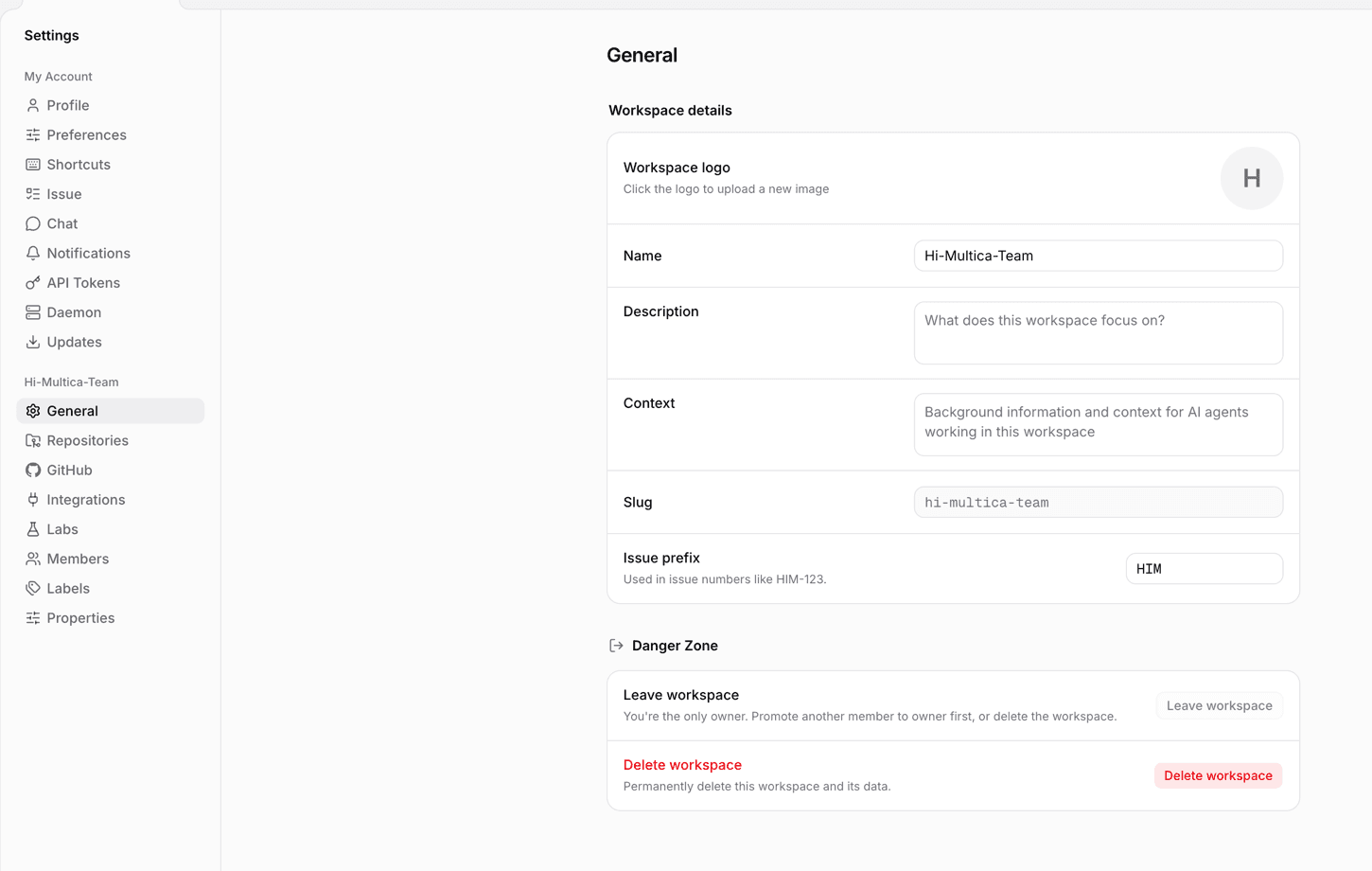
After the issue prefix changes, every issue immediately switches to the new number (MUL-5 becomes NEW-5), but the old numbers in PRs, branch names, and chat history do not update.
Switch and leave
One account can join multiple workspaces. Switching only changes what you are currently viewing; it moves no data.
After leaving a workspace, you need a new invitation to return. Leaving also deactivates the runtimes you own, archives the agents bound to them, and cancels their unfinished tasks.
The last owner cannot leave; promote another member to owner first.
Delete a workspace
Only an owner can delete a workspace. Deletion permanently removes all of its work, members, agent configuration, and task history, and cannot be undone. If you are only stepping away for a while, leave instead of deleting.
Next steps
- Members and roles — invite members and manage roles.
- Issues — the basic unit of work in a workspace.
- Agents — agent identity and configuration.