Autopilots
Hand recurring work to agents automatically, on a schedule or from a webhook.
Autopilots run work that happens over and over — a daily progress summary, a periodic dependency check, or an agent kicked off by an event from an external system.
Each autopilot stores a Runbook, an assignee, and one or more triggers. When triggered, Multica creates an issue or runs the agent directly, and keeps a record of every run.
Create an autopilot
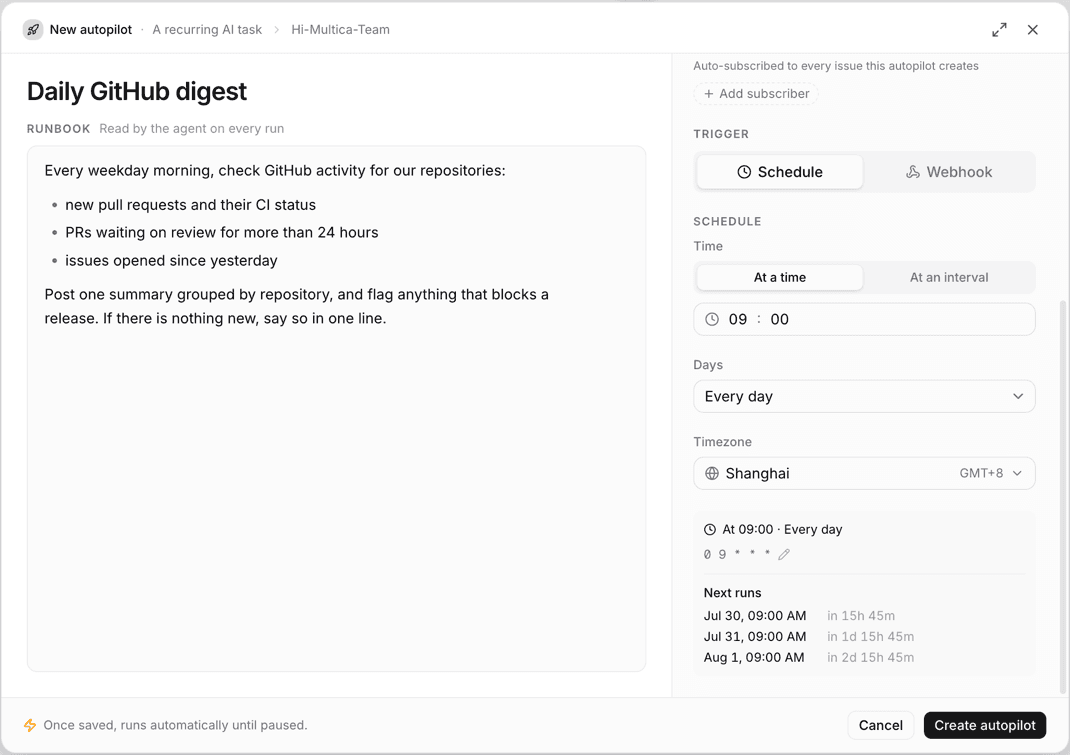
Open Autopilot in the sidebar, pick a template or start from scratch, then configure:
- Name: what this autopilot is responsible for;
- Runbook: the goal, background, constraints, and steps the agent reads on every run;
- Assignee: an agent or a squad;
- Project: optional; puts auto-created issues into a specific project;
- Execution mode: create an issue, or run only;
- Subscribers: members to notify after an issue is auto-created;
- Triggers: a schedule or a webhook.
An autopilot is enabled by default after saving; Run now manually executes the full flow once at any time.
Choose an execution mode
| Mode | Behavior | Best for |
|---|---|---|
| Create issue | Each trigger first creates an issue, then assigns it to the assignee; discussion, status, and run records all live on the issue. | Work the team needs to review, confirm, or follow up on. |
| Run only | Creates a task directly with no issue; results are visible only in the autopilot's run history. | Background runs that need no collaboration record. |
Create issue mode uses the same task queue as regular issues: when the runtime is offline, the issue is still created and the task waits for the runtime to come online.
Run only requires the runtime to be available at trigger time; otherwise the run shows as skipped, and no waiting issue is left behind.
Run on a schedule
The schedule editor lets you pick the run time, repeat days, time window, and timezone, and previews the upcoming run times. One autopilot can have multiple schedules; enabling or disabling an individual trigger is done with the CLI's autopilot trigger-update — see Using the CLI for the parameters.
When you need more complex rules, edit the standard 5-field cron directly:
minute hour day month weekdayFor example:
| Cron | Timezone | Meaning |
|---|---|---|
0 9 * * 1-5 | Asia/Shanghai | 9:00 on weekdays |
*/30 * * * * | UTC | Every 30 minutes |
0 3 * * * | UTC | Every day at 3:00 |
Cron has no seconds field, and timezones use IANA names like Asia/Shanghai. Before saving, check the result against the "next runs" times shown on the page.
Run from a webhook
After adding a webhook trigger, Multica generates a unique URL. Send it a JSON object or array to trigger the autopilot:
curl -X POST "$MULTICA_WEBHOOK_URL" \
  -H "Content-Type: application/json" \
  -H "Idempotency-Key: demo-001" \
  -d '{"event":"build.completed","eventPayload":{"status":"success"}}'
The payload is saved on the delivery and run records and handed to the agent. In create-issue mode it is also appended to the issue description.
Constraints on webhook requests:
- the body must be a valid JSON object or array, up to 256 KiB;
Idempotency-Keyprevents duplicate runs when the sender retries; GitHub deliveries are also deduplicated byX-GitHub-Delivery;- without a stable idempotency key, Multica can't guarantee that repeated requests run only once;
- when the trigger is disabled or the event doesn't match, the delivery is recorded as ignored and no run is created.
Filter events
When one source sends several event types, add event filters to the trigger. Each row holds one event name plus an optional list of actions; a run fires if any row matches, and leaving all rows empty accepts every event.
For example, with workflow_run as the event name and completed, failed as the actions, only those two kinds of workflow_run results are accepted. Multica recognizes the event and action from common request headers and payload fields, including GitHub's X-GitHub-Event and the action field in the body.
Protect the webhook URL
The token in the webhook URL is the calling credential. Don't put the full URL in public repositories, issues, or screenshots. If the URL leaks, click the Rotate URL button next to it and update the sender immediately; the old URL stops working right away.
Only the autopilot's creator, workspace owners/admins, and collaborators granted access can view the full URL. The UI hides the token in the URL by default, and copying doesn't require revealing it; click the URL or the eye icon to view the full address.
Webhook response reference
When debugging a sender, use this table to interpret Multica's responses:
| HTTP status | Response status | Meaning |
|---|---|---|
| 200 | accepted | Accepted and a run was created; returns the delivery and run IDs. |
| 200 | skipped | Accepted, but this run was skipped (for example, the runtime is offline in run-only mode); includes the reason. |
| 200 | ignored | No run created: the trigger is disabled, the autopilot is paused or archived, or the event was filtered; the reason field explains why. |
| 200 | duplicate | The idempotency key hit an existing delivery; returns the original delivery ID and doesn't run again. |
| 400 | Error message | The body is empty, not valid JSON, or not a JSON object/array. |
| 401 | rejected | The trigger has a signing secret configured, but the request is missing a signature or the signature doesn't match. |
| 404 | Error message | The token in the URL is invalid or has been rotated. |
| 413 | Error message | The body exceeds 256 KiB. |
| 429 | Error message | Too many requests; retry later per the Retry-After response header. |
| 500 | Error message | Multica internal error; the sender can retry later. |
Business-level ignores — pausing, archiving, and event filtering — return 200 rather than 4xx, so senders don't retry endlessly.
Event and action inference order:
- if the body has a string
eventfield, it is used directly; - otherwise the
X-GitHub-Eventrequest header, combined with the body'sactionintogithub.<event>.<action>; - then the
X-Gitlab-Eventrequest header; - then the
X-Event-Typerequest header; - then the body's
event,type, andactionfields; - when all are missing, the event is recorded as
webhook.received.
View runs and deliveries
Run history shows the trigger source, time, status, the linked issue or task, and the reason for a failure or skip. Webhook triggers additionally keep separate delivery records, including the parsed event, the response, deduplication info, and the failure reason.
A fully processed webhook delivery can be replayed from its detail view. A replay creates a new delivery and run without rewriting the original record; deliveries that failed signature verification or are still queued can't be replayed, and replays don't participate in deduplication.
Failures, pausing, and deletion
A failed task in run-only mode is not retried automatically; the next schedule still fires as planned. Create-issue mode produces regular issue tasks, and infrastructure failures follow the rules in Tasks.
Multica periodically checks whether recent runs keep failing: when the past 7 days have at least 50 completed or failed runs with a failure rate of 90%, the system pauses the autopilot and notifies its creator; fix the cause, then resume it manually.
Pausing manually stops schedules, webhooks, and Run now. Deletion is actually archiving: future triggers stop, and run and delivery history is kept.
Permissions
- Any workspace member can create autopilots;
- the creator and workspace owners/admins can edit, run, delete, and manage triggers;
- the creator and owners/admins can add collaborators to management access;
- collaborators can edit, run, and manage triggers, but can't grant access to others;
- being able to manage an autopilot doesn't guarantee being able to run its agent — agent Access still applies.
Use the CLI
multica autopilot trigger <autopilot-id>
multica autopilot runs <autopilot-id>
multica autopilot trigger-rotate-url <autopilot-id> <trigger-id>
See Using the CLI for the full parameters.
Next steps
- Assign issues to agents — assignment and the confirmation window.
- Inbox and subscriptions — where run notifications arrive.
- Tasks — run states and failure handling.